
By NakodaX Marketing team
NakodaX · · Updated

NakodaX blog/Document Protection·2 min read
A black box drawn in a PDF editor usually sits on top of the text, which stays in the file and can be copied. NakodaX redaction deletes the marked text from the file and checks the result. It also blanks the title and author, and strips image location data. It covers PDF, PNG, JPEG and WebP.
By NakodaX Marketing team
NakodaX · · Updated

Covering text is not the same as deleting it.
A law firm sends a draft agreement to the other side. A company sends an audit report to a regulator. An HR team sends an investigation file to an outside lawyer.
Most of each document can be shared. A price, a name, an address or a few paragraphs cannot. Someone draws black boxes over those parts and sends the file.
A box drawn over text usually sits on top of it. The text is still in the file, so the other side can select it, copy it or read it with another tool. The PDF's title, author and other properties are also still there. This is a known way for redacted documents to leak, and the sender cannot see it from the page.
You open the PDF in your browser and mark the passages. The marked text is deleted from the file, and nothing is painted over it. NakodaX blanks the PDF's title, author and other properties, and checks the result. For images, the marked pixels are destroyed, and location and camera data are stripped.
It all runs in your browser, in Document Protection. You can then share the redacted file like any protected document, with the people you name, until the date you set, with a record of who opened it. The original stays with you.
You can ask for suggestions on text PDFs. They find patterns such as email addresses, phone numbers, card numbers, bank account numbers and some national ID formats. Every suggestion needs your approval before it is marked. There is no AI and no name detection, so names you want removed you mark yourself.
Redaction covers PDF, PNG, JPEG and WebP. It does not cover Word or Excel files, video, GIF, HEIC or SVG. For a Word or Excel file, use Selective Share to leave out sections, sheets or columns. The story of a PDF with passages removed shows a real case.
Mark it, delete it, check it, then share the redacted file with an end date.
Related product
Protect documents before sharing. Control who can open them, what they can see, when access ends and how protected documents are used.
See how it worksStart a free trial, or tell us what you share and with whom, and we will show you how NakodaX handles it.
Real situations, and the video where there is one, on the same problem.
Video
Share only selected pages, rows, image areas or video clips of a file, and stop sharing anytime, with NakodaX Document Protection.
Watch (0:34)Situation
A lender asks for a bank statement and a photo of an ID. They need a few lines and a name. They receive every account number and transaction, and a photo that carries its location.
Read moreSituation
A contract, a report or a case file has to go to someone outside. Most of it can. A price, a name and a few paragraphs cannot. A black box drawn over them often leaves the text in the file.
Read more
New to NakodaX? Watch the overview
A full walkthrough of how NakodaX helps a business keep control of documents, business data and source code after they are shared, moved or deployed.
Watch the video (8:49)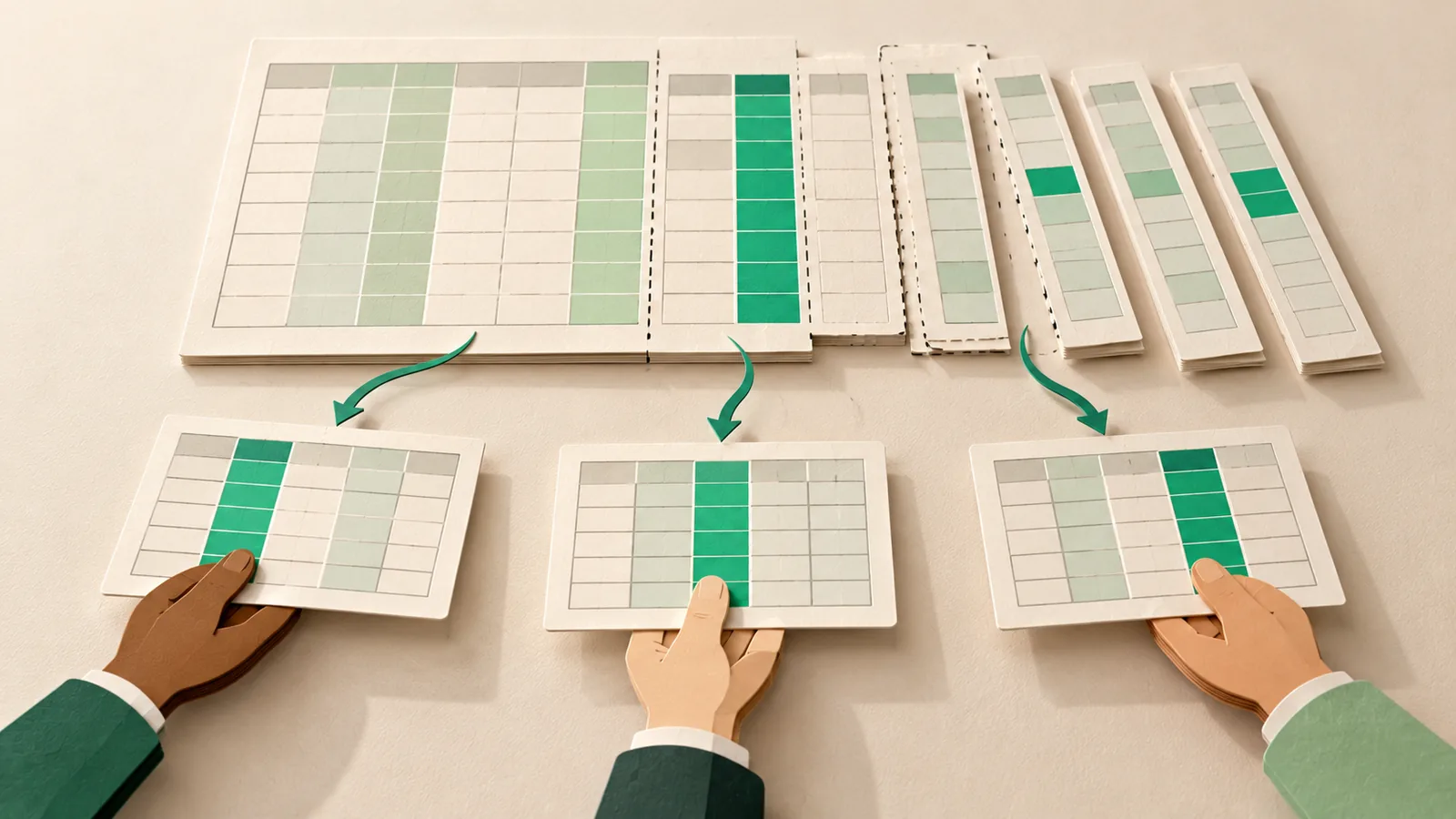
Document Protection · 2 min read
Hiding a column in Excel does not remove it. Here is how to send each person only the sheets, columns and rows they should see.
September 5, 2026
Document Protection · 2 min read
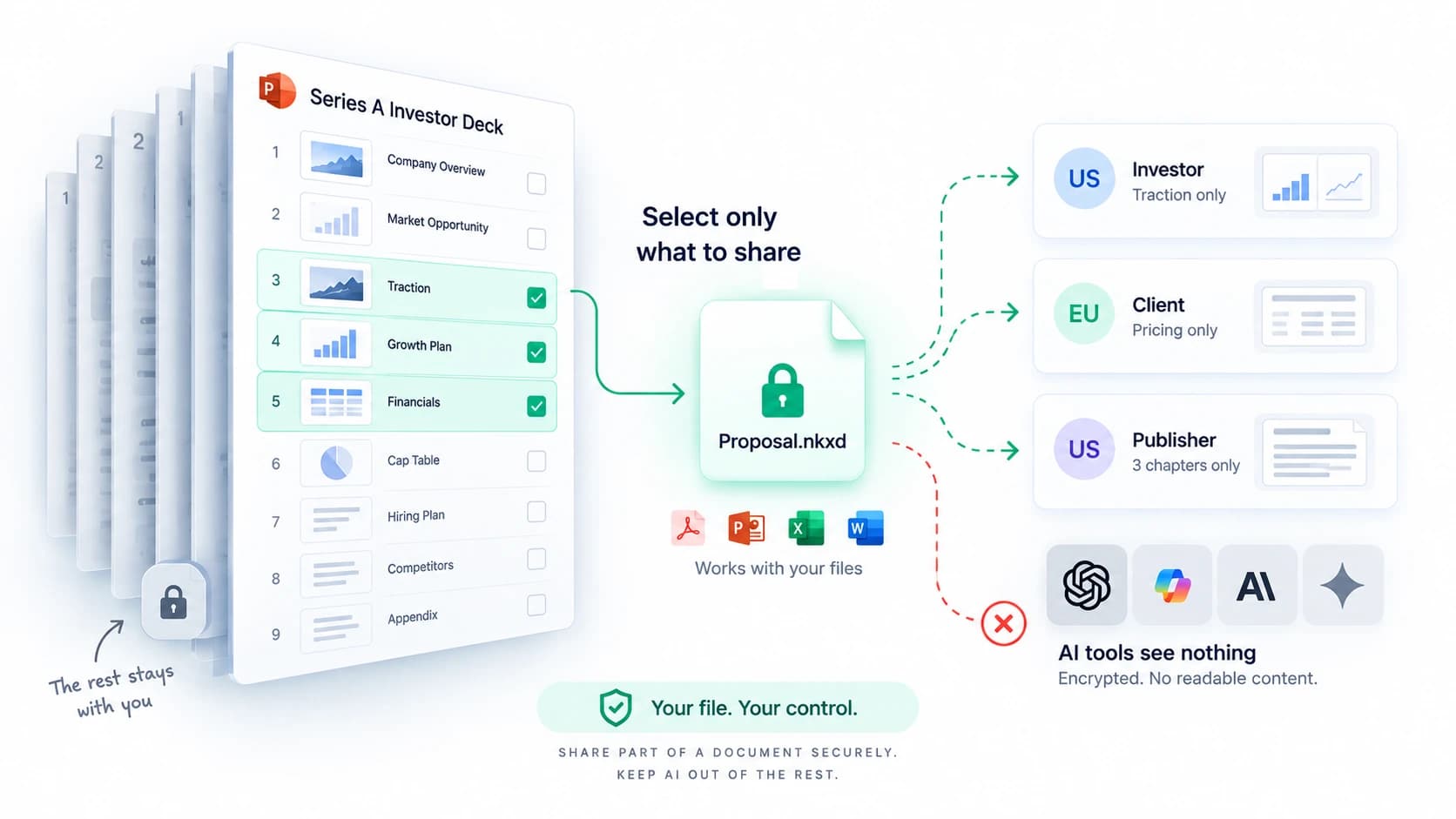
Selective Share sends only the slides, pages, sheets or sections someone should see. The rest of the file never reaches them. Here is how it works.
September 8, 2026

Document Protection · 2 min read
A normal PDF cannot expire, and a link that expires can still leave a copy. Here is how to send a file that stops opening on a date you choose.
September 2, 2026